.Net (C#) calls LabelSoft label editing software to preview and print barcode labels
No need to understand complicated DLL functions; call LabelSoft software to preview and print labels,
which is the simplest way to integrate barcode/RFID label printing into an existing system.
Download sample source code: /downloads/sdk-all/
Steps: 1. Connect the ZMIN label printer to the computer;
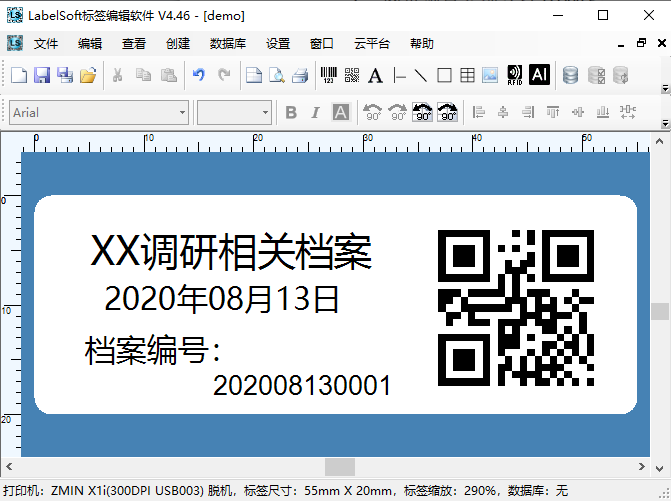
2. Run the LabelSoft label editing software and lay out the design according to the actual label size. The figure below uses a 55X20mm label as an example:
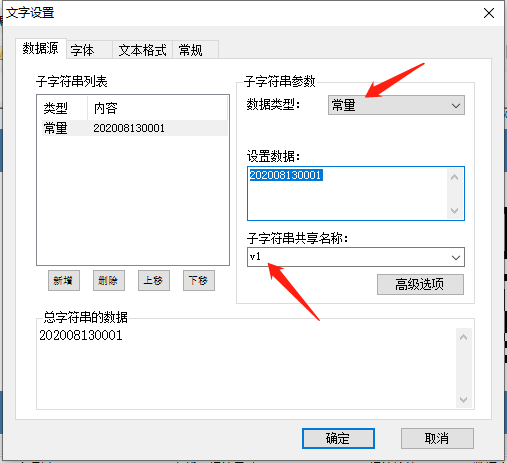
3. Name the variables in the label that need to be changed by passed values. In the example, the file number and the QR code use the same data,
and their values need to change during printing, so set their shared name to: v1. Note: the shared name can be
customized; English letters plus numbers are recommended. If multiple variables need to be modified, set them to: v1, v2, v3… respectively.
For data type, generally select Constant or Serial Number; do not select Input at Print Time.
4. After completing the layout, print in LabelSoft. If the output is normal, save the label,
for example, save as: demo.lsf;
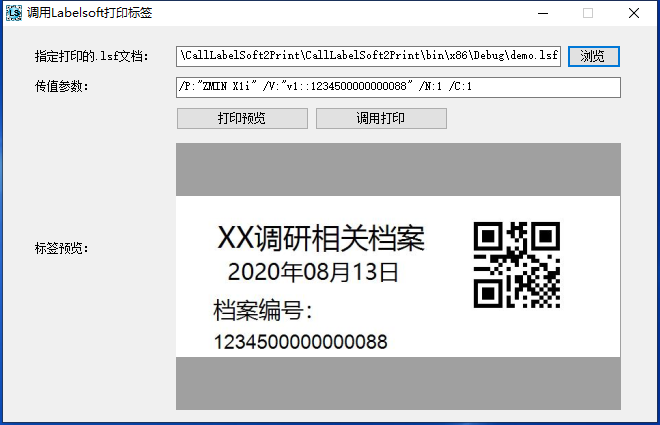
5. In C#, call an external program to pass parameters to LabelSoft.exe, achieving
preview and print output of the label file.
Main code:
private string Run_LabelSoft_Command(string argument)//Run LabelSoft with parameters { try { System.Diagnostics.Process p = new System.Diagnostics.Process(); p.StartInfo.UseShellExecute = false; p.StartInfo.CreateNoWindow = true; p.StartInfo.RedirectStandardOutput = true; p.StartInfo.RedirectStandardError = true; p.StartInfo.FileName = Application.StartupPath + "\\LabelSoft.exe";//Program name to start p.StartInfo.Arguments = argument;//Startup parameters p.Start();//Start p.WaitForExit();//Block until LabelSoft exits return "success";// p.StandardOutput.ReadToEnd(); } catch (Exception ex) { return ex.Message; } }
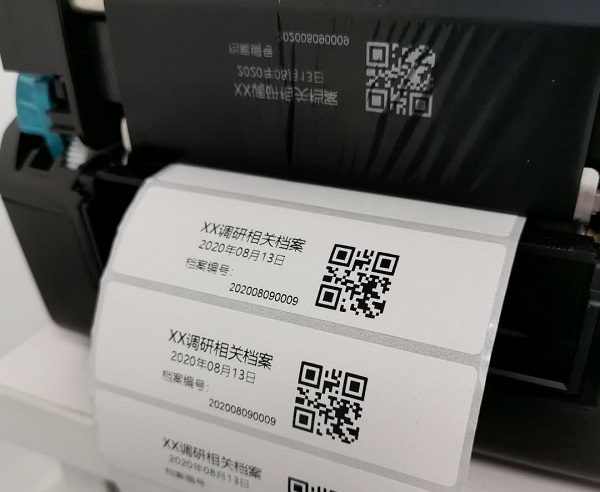
6. Print output result:
Download sample source code: /downloads/sdk-all/