AirPrint explained:
AirPrint is an Apple technology that allows apps to create lossless print output through Apple's driverless printing architecture.
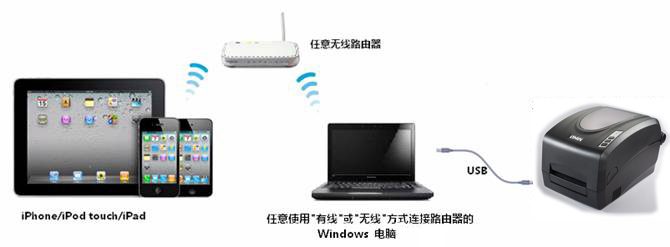
Using AirPrint requires two conditions: an iPhone/iPod touch/iPad running iOS 4.2.1 or later, and an AirPrint-capable printer connected via wired or wireless means to the same local network.
Can a barcode printer be made AirPrint-capable so that labels can be printed from an iPhone or iPad?
The answer is yes.
We need the "NETGEAR genie" software to make the barcode printer AirPrint-capable.
Requirements:
1. A computer; a 64-bit Win7 operating system was used for testing.
2. A USB barcode printer; a ZMIN X1i was used for testing.
3. An Apple iOS device (iPad, iPhone, or iPod Touch).
Steps:
1. Install three programs on the computer: NETGEAR genie (PC version), iTunes, and Adobe Reader. >NETGEAR genie link: http://support.netgear.cn/china/event/genie/ >Adobe Reader link: http://get.adobe.com/cn/reader/ >iTunes link: http://www.apple.com/cn/itunes/download/
2. Connect the barcode printer to the computer and install the printer driver.
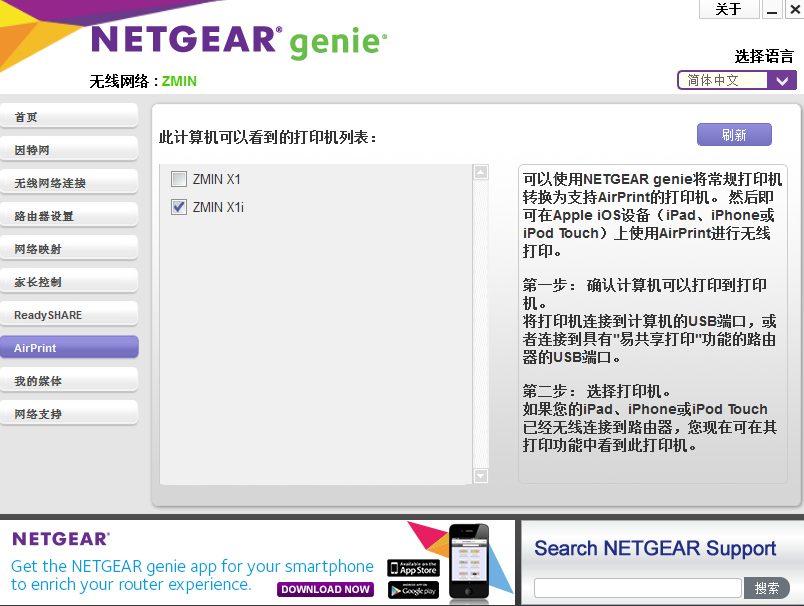
3. Open NETGEAR genie installed on the computer, click "AirPrint", and select the barcode printer connected to the computer's USB port, as shown below:
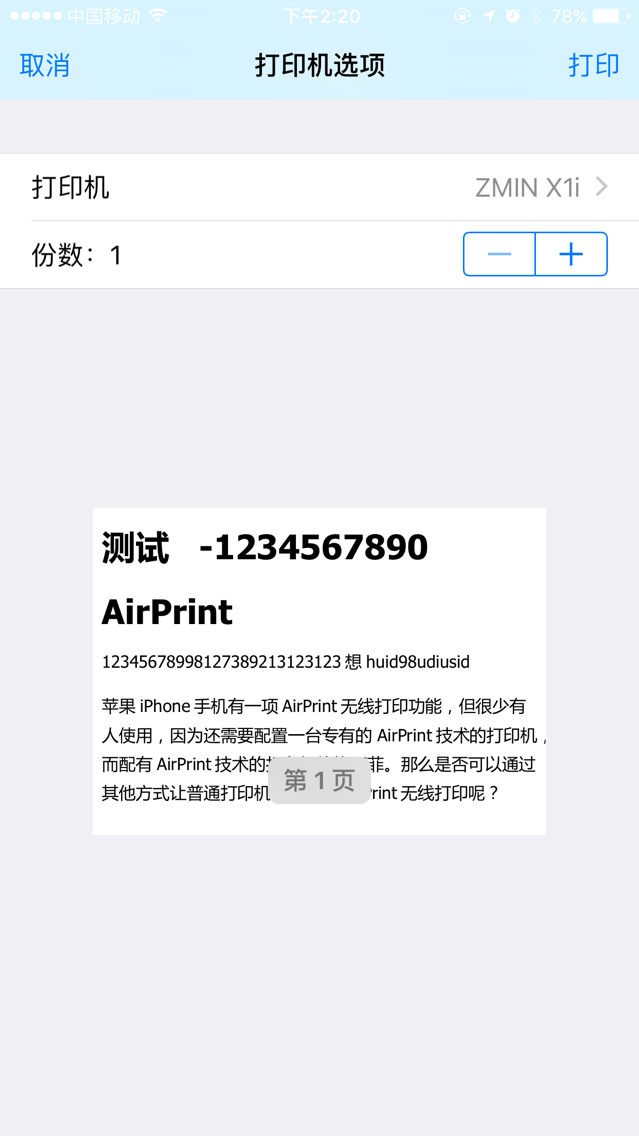
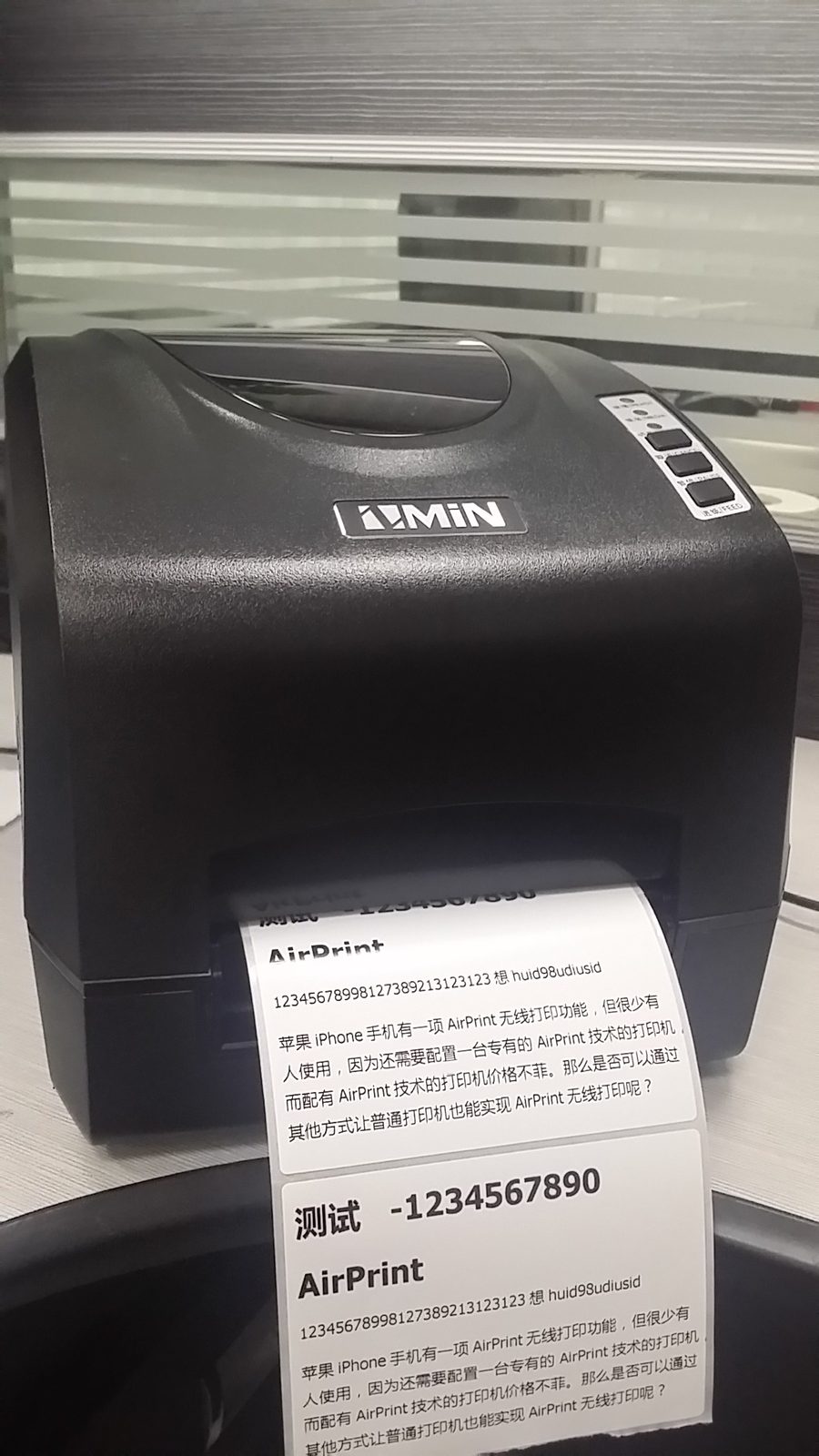
4. Connect the Apple iOS device (iPad, iPhone, or iPod Touch) to the same local area network (Wi-Fi) as the computer, select the file to print, and tap "Print". Your barcode printer will then be discoverable; select it and tap "Print". At this point, a PDF file (the file you want to print) will pop up on the computer connected to the barcode printer on your local network, and printing begins.
5. If the barcode printer is not found on the Apple iOS device, please restart the computer.