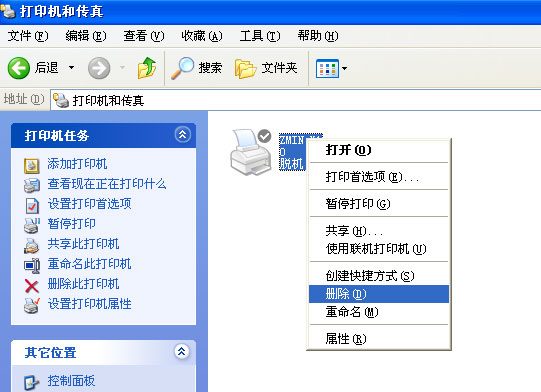
Click "Start" -> "Printers and Faxes". In the "Printers and Faxes" window, find the printer icon.
(This article uses the ZMIN X1 barcode printer as an example; the operation for other printer models is similar.)
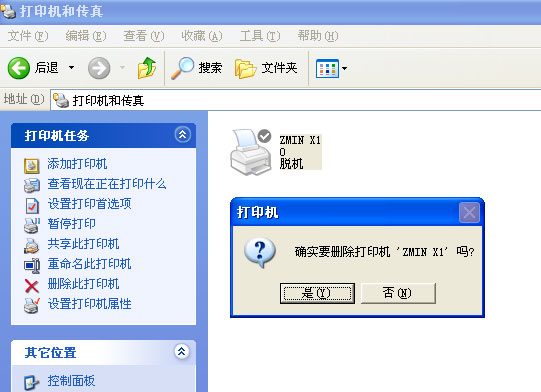
In the "Printers and Faxes" window, right-click the "ZMIN X1" icon and select the "Delete" menu item.
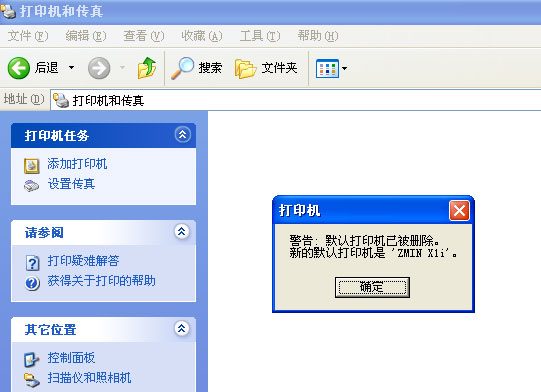
If the printer icon still exists after confirming the deletion, right-click the "ZMIN X1" icon and select the "Cancel All Documents" menu item; the printer icon can then be deleted.
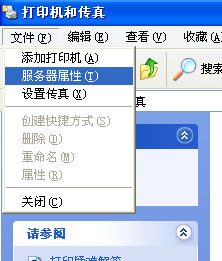
In the "Printers and Faxes" window, click "File" -> "Server Properties" in sequence.
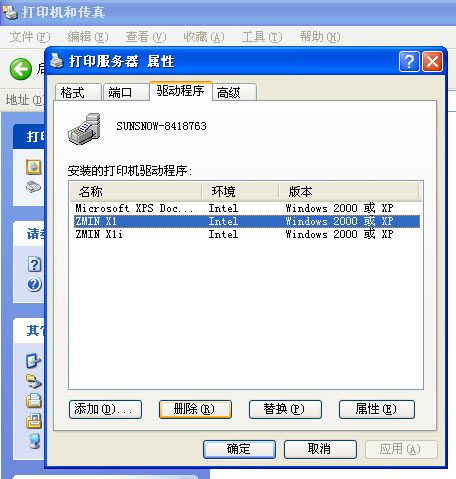
In the "Print Server Properties" window, click the "Drivers" tab, select the "ZMIN X1" printer model, and then click the "Delete" button.
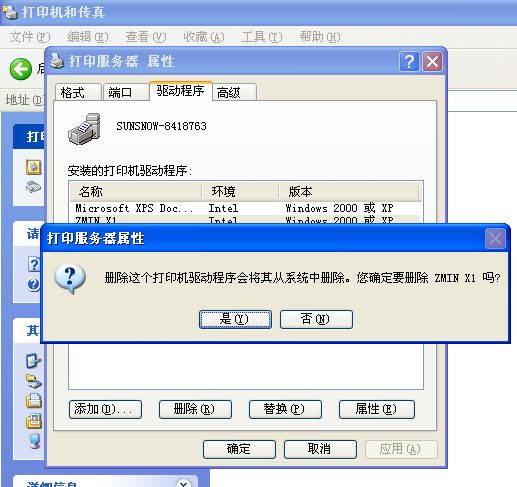
In the "Print Server Properties" window, click the "Yes" button.
If the "Print Server Properties" window says the driver cannot be deleted, click "OK" and then restart the computer.
If the printer icon in the "Printers and Faxes" window is not deleted, or the printer was used before deleting the printer icon, the "Print Server Properties" window will say the driver cannot be deleted. After restarting the computer, do not perform any printing operations, and follow the steps again to delete the driver.
At this point, the ZMIN barcode printer driver has been deleted, and you can reinstall the printer driver following the correct steps.