How to Print FBA Product Labels with a Barcode Printer in Amazon Seller Central? — Using the ZMIN X1i barcode printer as an example
Anyone doing business on Amazon knows that goods entering Amazon warehouses must pass scanning of FBA barcode labels. If the barcode labels affixed to the products cannot be scanned, inbound operations cannot be completed, which has a huge impact on sellers; the back-and-forth hassle may cost more than the goods are worth, so printing and affixing high-quality barcode labels is essential.
What is Amazon FBA?
Amazon FBA stands for Fulfillment by Amazon. To use Amazon logistics services, you need to export the products yourself to the overseas countries where you open your store and store them in the corresponding Amazon fulfillment centers, and Amazon completes local order delivery.
The labels downloaded from Amazon Seller Central are A4-sized PDF documents, which can be printed with an inkjet or laser printer and then cut out and affixed to products. This is cumbersome, and when printing the PDF, automatic fit-to-page scaling may be selected, causing the printed barcodes to be unscannable. Therefore, more and more people choose dedicated barcode printers to print FBA product labels.
Barcode printers are professional printers designed specifically for printing barcode labels. By resolution, the mainstream ones are 200DPI and 300DPI; a 300DPI barcode printer is recommended. This example uses the author's own ZMIN 300DPI barcode printer, model X1i. There are other brands and models on the market, and you can choose for yourself. If you have never used a barcode printer before, it is not recommended to buy online; online shopping is convenient, but service is the weak point. Major electronics markets now sell barcode printers; going to the site and having the merchant demonstrate is more reliable, and it is easier to choose suitable adhesive labels (FBA has no special requirements for label size; commonly used are 50mm wide x 30mm high or 50mm wide x 25mm high).
Okay, now let's introduce how to print FBA product labels with a barcode printer.
Required tools:
1. A computer (with PDF reader installed: Foxit Reader v4.3 or Adobe Acrobat X Pro)
2. A ZMIN barcode label printer (comes with printer driver and barcode label editing software XLabel)
3. 50mm*25mm coated paper adhesive labels (2 per row)
4. 110mm*300m wax ribbon
Operation steps:
1. Install a PDF reader on the computer; searching Baidu for "Foxit Reader v4.3" or "Adobe Acrobat" will find many download sites. Foxit Reader v4.3 is relatively small; it is recommended.
2. Connect the ZMIN barcode printer to the computer via USB, and install the printer driver and the barcode label editing software XLabel. These are all on the CD supplied with the printer; if the CD is lost, download them from the official website: www.zmin.com.cn
3. Install the adhesive labels and ribbon on the printer. If you don't know how, please watch the video demonstration on the official website: www.zmin.com.cn, the first item in the software download list, "ZMIN Barcode Printer Operation Video Demonstration".
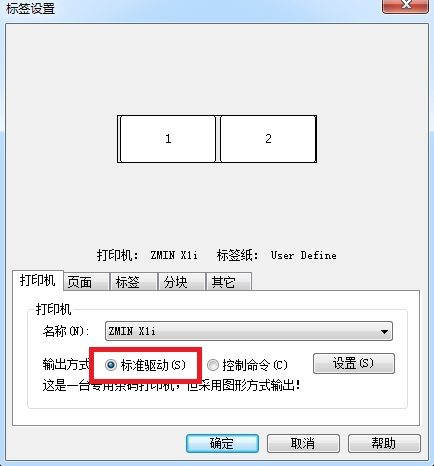
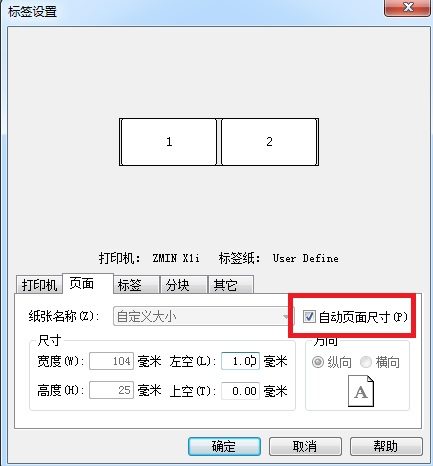
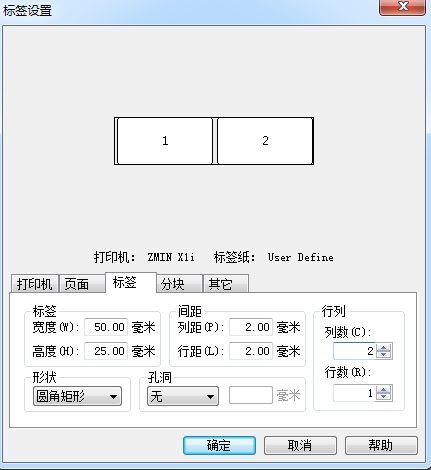
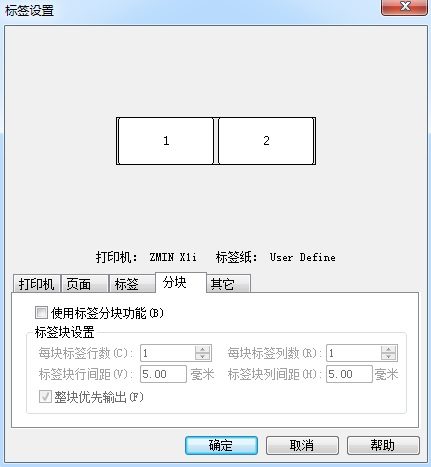
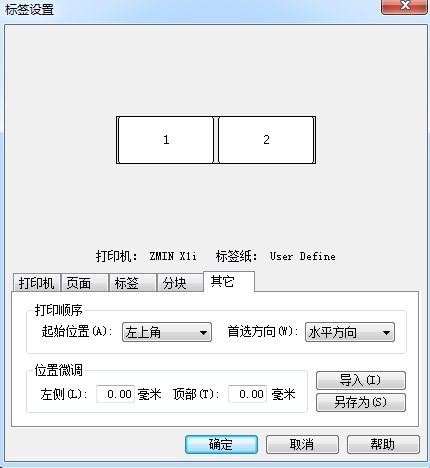
4. Open the XLabel barcode editing software, create a new label, click "File" -> "Label Settings", and set the label and page sizes.
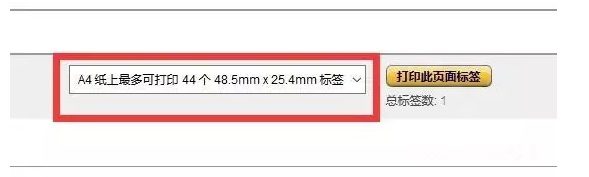
5. After setting up the label in XLabel, save the label. Switch to Amazon Seller Central, select a label format roughly the same size as the purchased coated paper adhesive labels, and click Print to generate a PDF file.
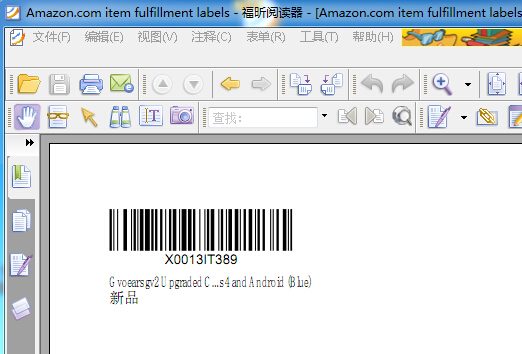
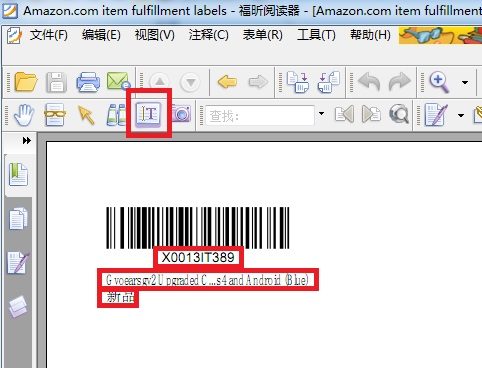
6. Open the generated PDF file with Foxit Reader.
7. In Foxit Reader, click "T" to enter text selection mode, then select 3 pieces of text. These 3 pieces of text need to be copied separately into the label data sources in XLabel (note that the vertical bar barcode does not need to be copied; it is a graphic automatically generated from the character string below it for automatic recognition by barcode scanners).
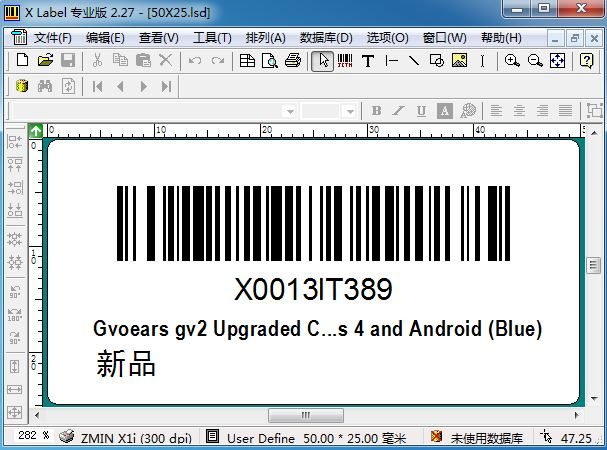
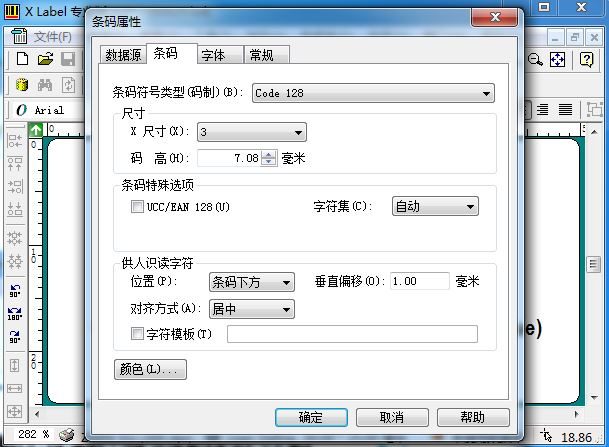
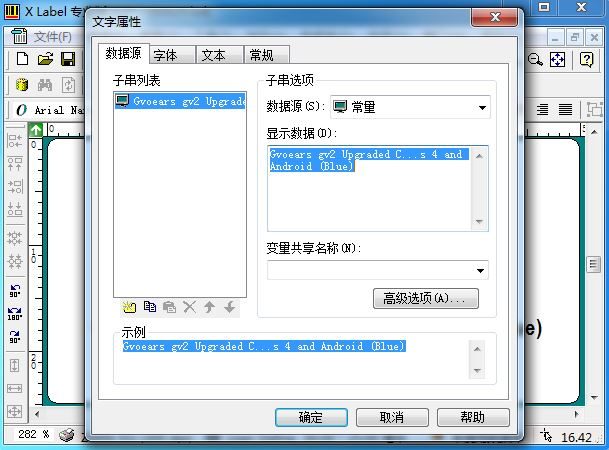
8. Switch to XLabel and arrange the required content in the newly created label. Refer to the PDF document generated by Amazon Seller Central for content and layout (if you don't know how to arrange the content, refer to the video demonstration on the ZMIN official website: /downloads/ arranging the content to be printed in the XLabel barcode editing software). Note that the barcode symbol type should be Code128, the character set should be Auto, and the X dimension controls the barcode width; generally 2 or 3 is fine. Bar height refers to the barcode height, which can be set according to the label size. The barcode text font is generally "Arial", the product description font is generally "Arial Narrow" bold, and the Chinese "New Product" can use SimHei. This ensures the printed labels look the best. Select Constant as the data source, and paste the corresponding data from the PDF document under Display Data; for example, paste the barcode data into the barcode data source, and paste the product description into the product description data source.
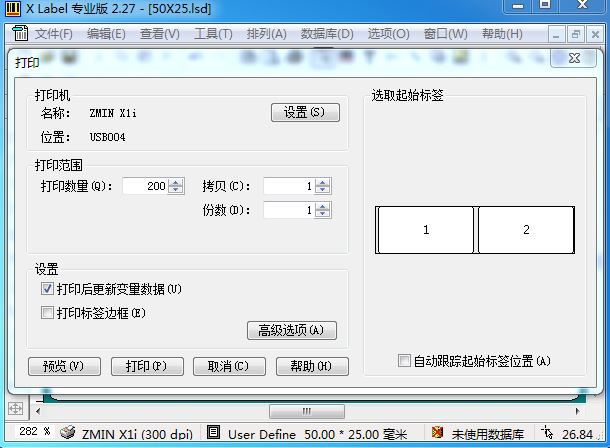
9. After arranging the content, print the label.
10. This is the whole process of printing FBA product labels with a barcode printer. It is best to scan the printed labels with a scanner to see whether the data matches the PDF. Some online articles introduce creating a new PDF document with a PDF editor for printing, but after testing, it seems more troublesome, and the labels printed from the PDF are not beautiful enough, so it is better to leave professional tasks to professional software and printers.