ZMIN X Series Barcode Printer
Ethernet Printing Setup Instructions
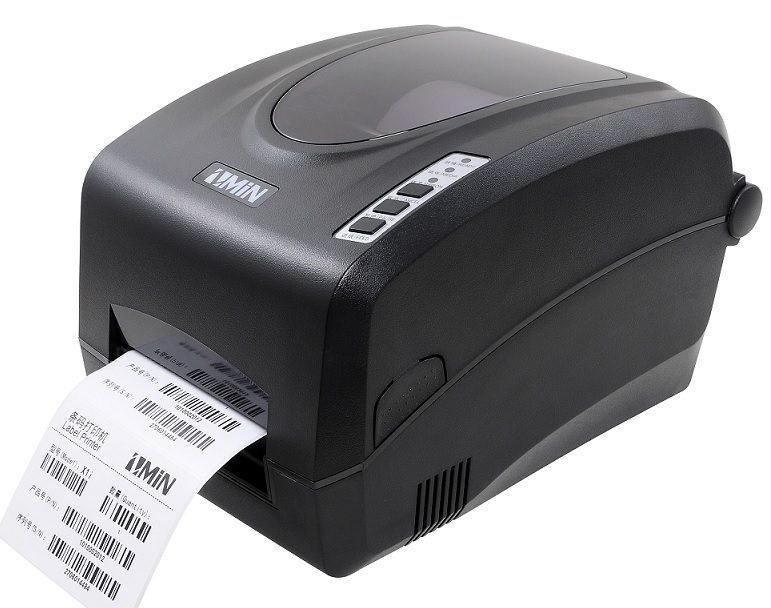
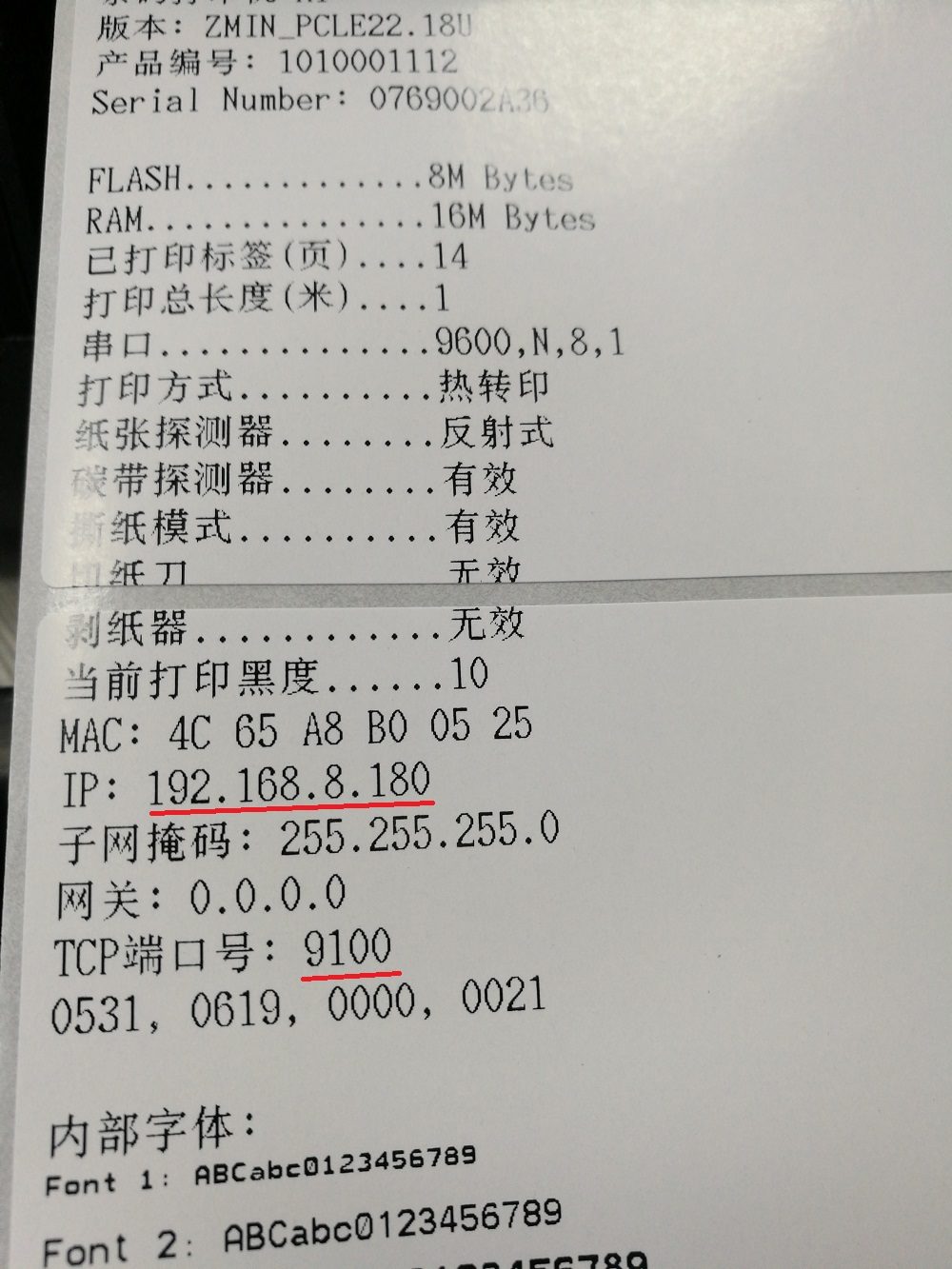
1. Print a self-test page to view the printer's IP address. Install the ribbon and labels, press and hold the middle "Pause" button on the printer for 5 seconds, and a self-test page will be printed automatically. From the self-test page you can obtain the printer's IP address, port number and other information.
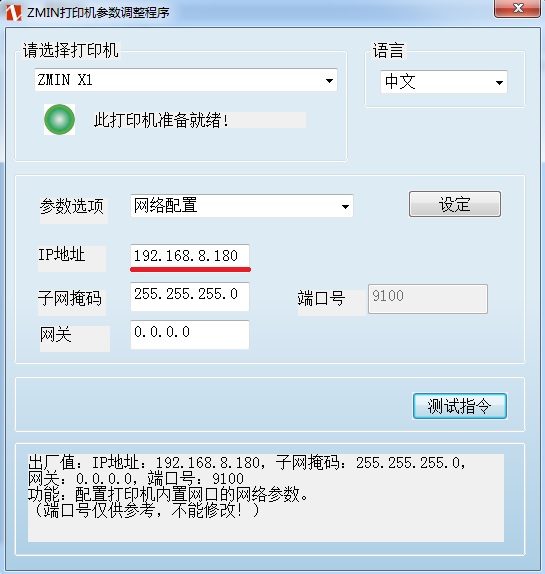
2. Set the printer's IP address. To set the printer's IP address, use the "Printer Parameter Setting Tool". 1. Connect the printer to the PC with a USB cable and install the printer driver on the PC. 2. Run the printer parameter setting tool. 3. In the tool, select "Network Configuration", enter the specified IP address, and click the "Set" button. The printer's "Paper" and "Ribbon" indicator lights will flash simultaneously; after turning the printer off and on again, the new IP address takes effect.
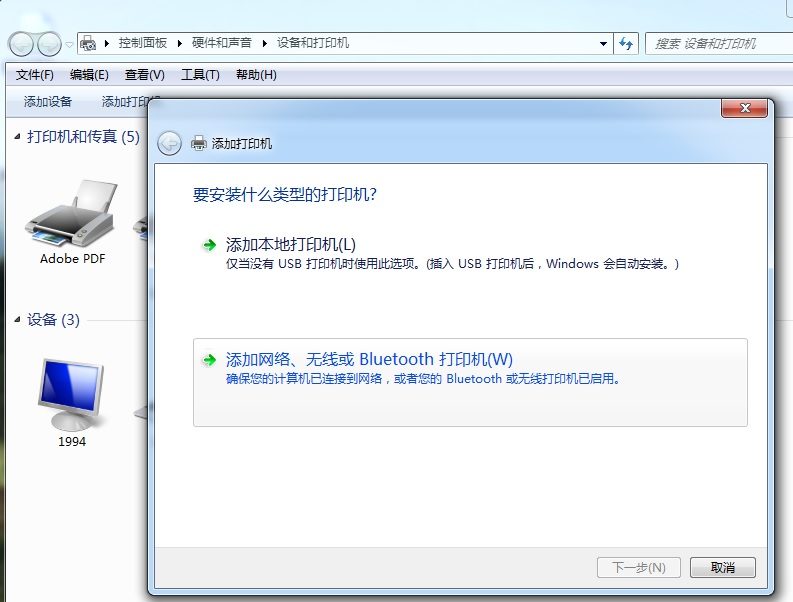
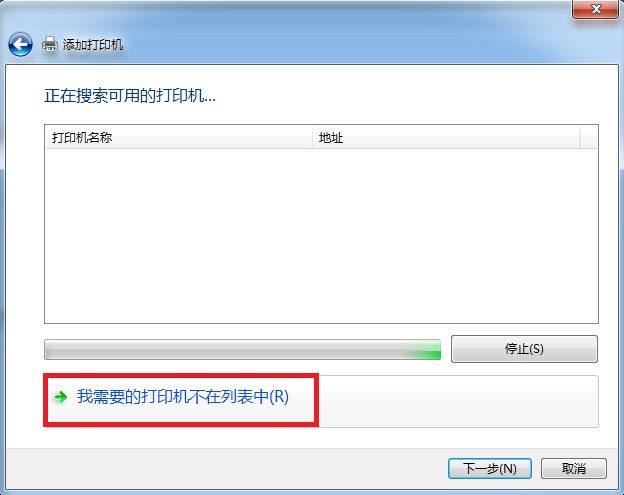
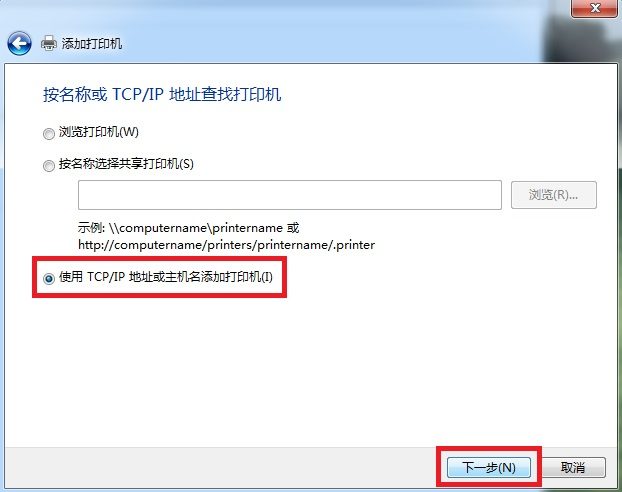
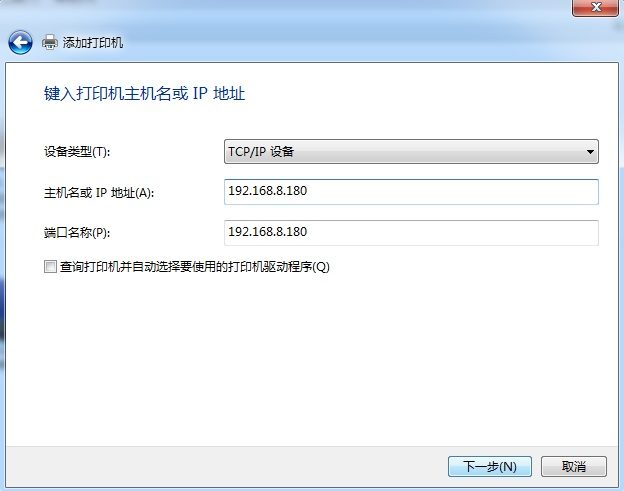
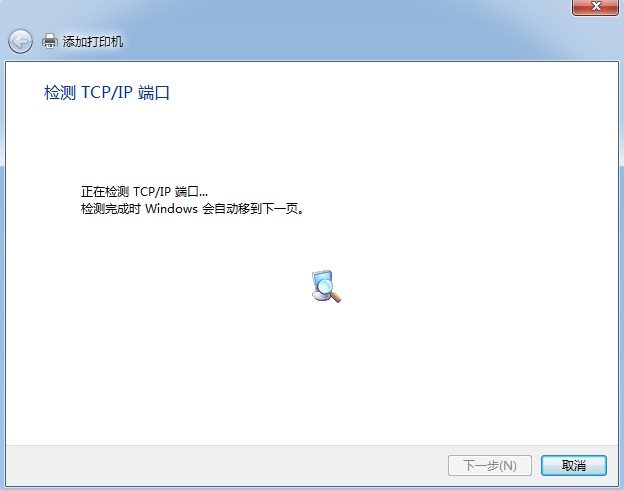
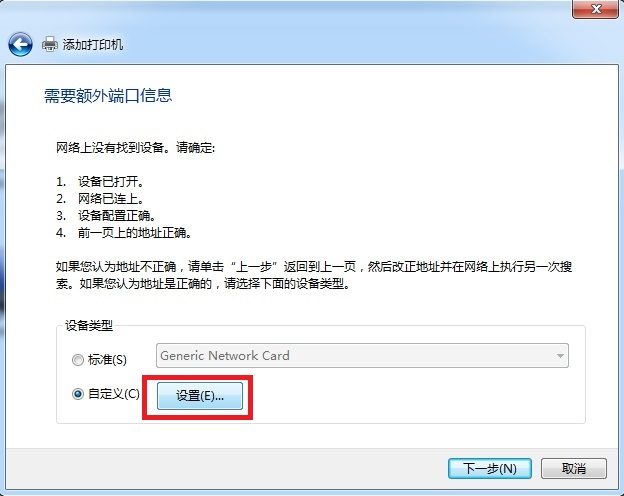
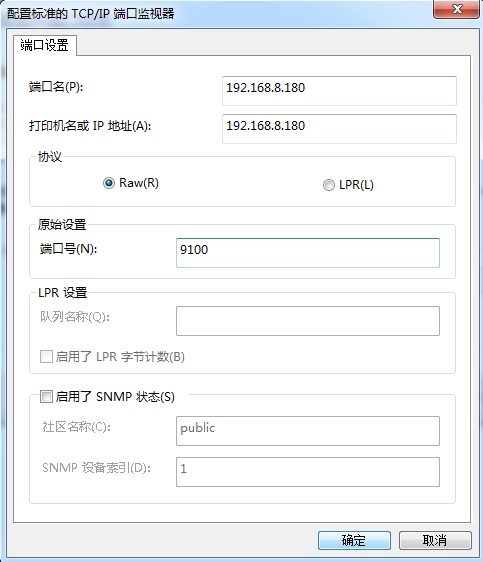
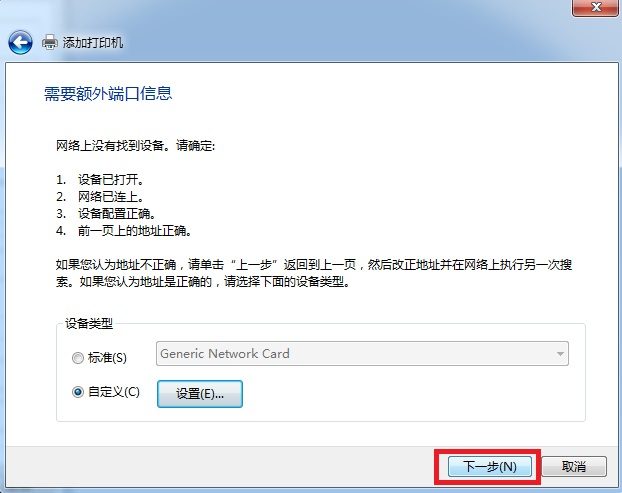
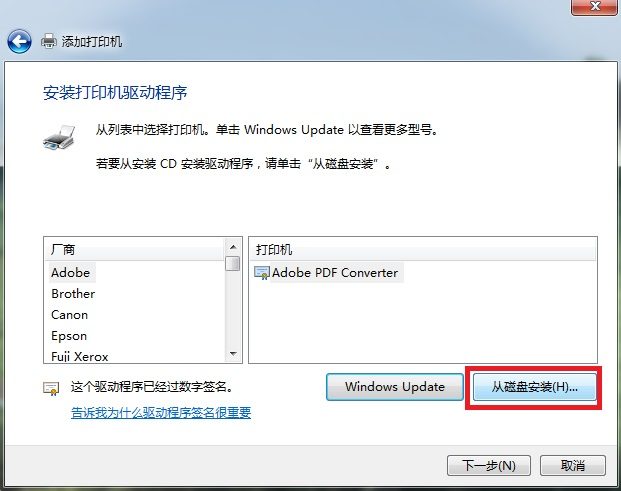
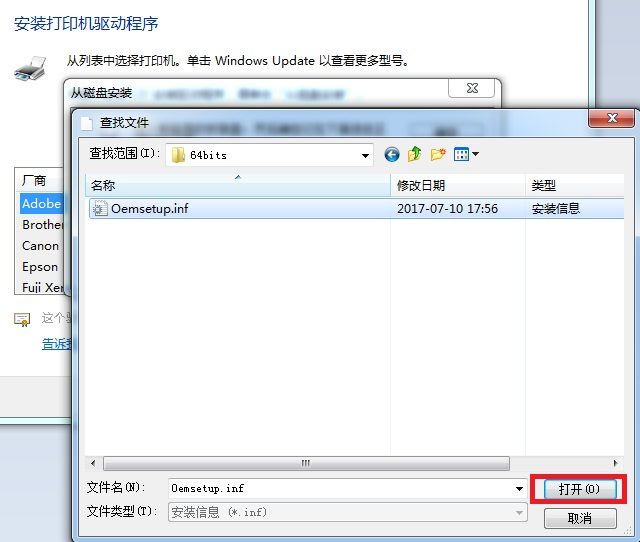
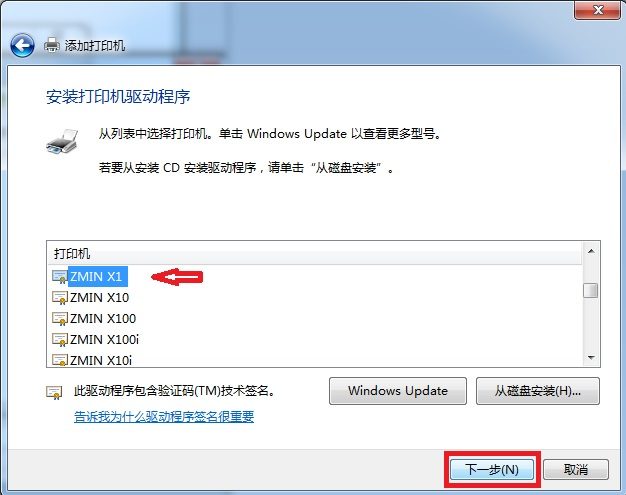
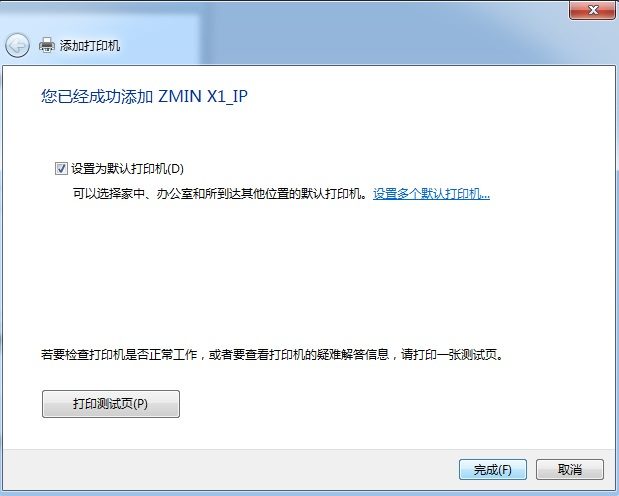
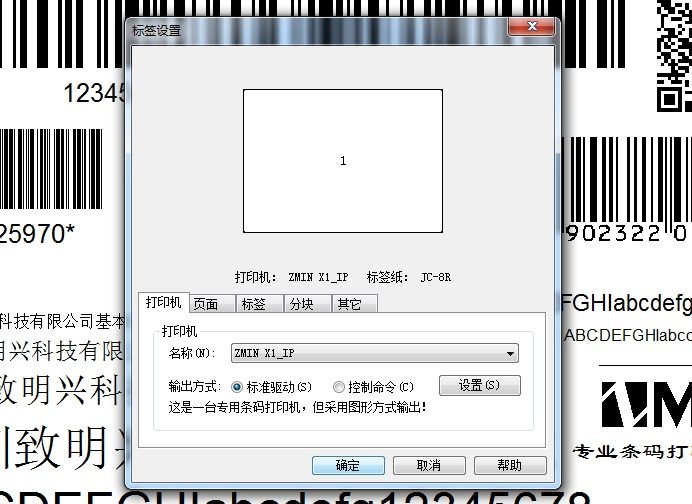
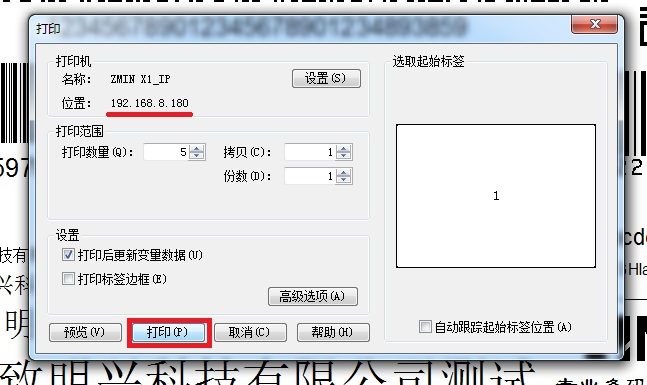
3. Install a network printer. 1. In Control Panel -> Hardware and Sound -> Devices and Printers, click "Add a printer", then select "Add a network, wireless or Bluetooth printer". 2. Select "The printer that I want isn't listed", then select "Add a printer using a TCP/IP address or hostname". 3. For Device type, select "TCP/IP Device"; enter the printer's IP address in the Hostname or IP address text box; keep the default port name; do not check "Query the printer and automatically select the driver to use"; click "Next". 4. Detecting the TCP/IP port may take several minutes; please be patient. When the "Additional port information required" window appears, select "Custom" for Device type, then click the "Settings" button on the right. 5. In the "Configure Standard TCP/IP Port Monitor" window, the default values can be used; use Raw as the protocol and 9100 as the port number. Click "OK" to return to the "Additional port information required" window, then click "Next". 6. In the "Install the printer driver" window, select "Have Disk", browse to the printer driver file directory, select the Oemsetup.inf file, and click "Open". 7. Select the corresponding printer model and click "Next". It is recommended to modify the printer name by adding "_IP" to distinguish it. 8. After installing the network printer, open the label editing software, select the installed network printer name, print a few labels, and check whether the displayed IP is correct.