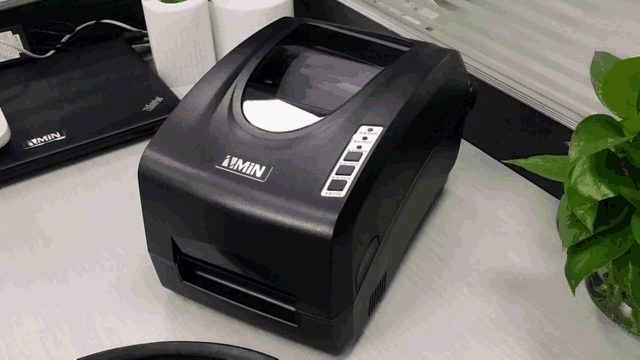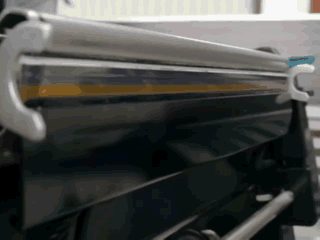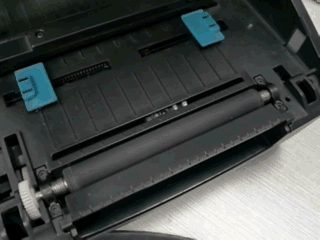
Barcode printers are relatively professional print output devices, widely used in packaging, electrical appliances, merchandise, management, office, production, chemicals, jewelry, clothing, transportation, tickets and many other scenarios.
Barcode printers differ from ordinary office printers: they are neither laser printers nor inkjet printers, but a type of thermal transfer printer that melts the wax or resin on the ribbon by heating and attaches it to label paper; they can also act directly on thermal paper to form text and images.
The biggest advantage of barcode printers is the ability to output labels quickly in batches.
What advantages does the ZMIN barcode printer have compared with barcode printers of other brands?
1. Performance: using high-performance hybrid stepper motors, ZMIN barcode printers can reach a print speed of 8 inches/second, meaning a 180mm express electronic waybill can be printed one per second, and printing can be continuous.
2. Effect: intelligent temperature control technology ensures that whether it is a small punctuation mark or a large 1D or 2D barcode on the same label, everything is perfectly rendered. Customers with the conditions can print on-site at a sales point and compare to feel the difference intuitively.
3. Stability and durability: the reasonable structural design makes ZMIN barcode printers handle high-intensity printing with ease. The exclusive super-strong protective film of the imported high-end thermal printhead ensures stable operation even with little maintenance.
4. Technical support: the machine is compatible with multiple commands, provides DLL, OCX and other SDKs, complete Windows, Linux and Mac drivers, and dedicated project support, so users can use it without worry.
Here, taking the ZMIN X series printer as an example, we introduce step by step how to really start using a new barcode printer after purchase.
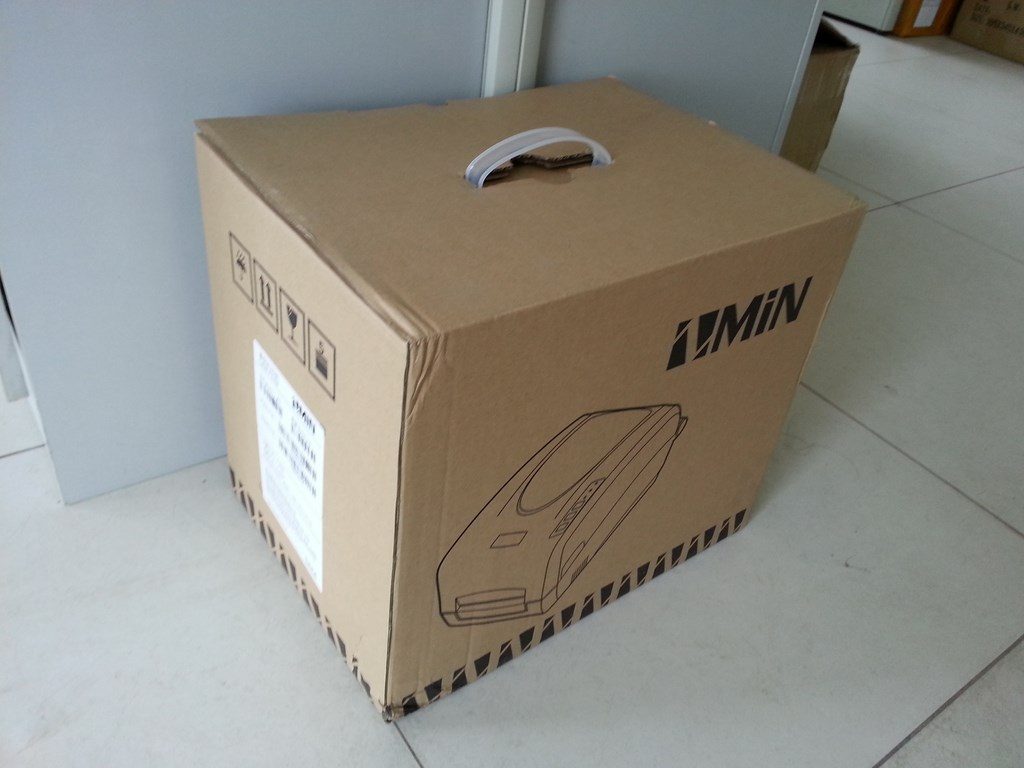
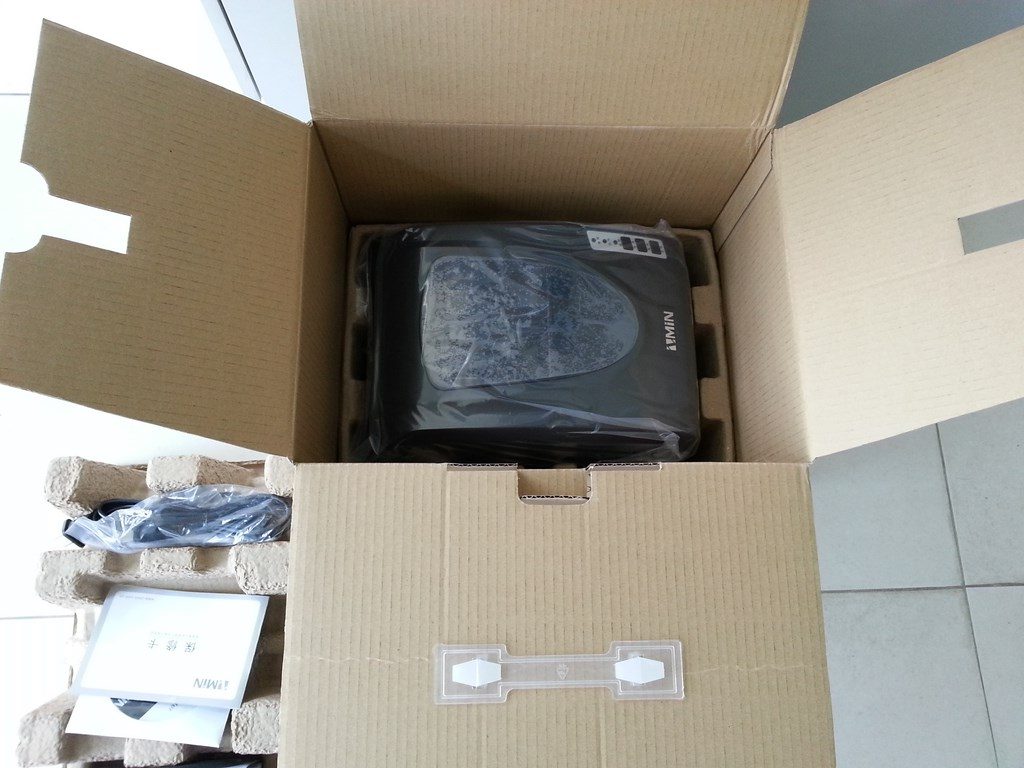
1. Unpacking
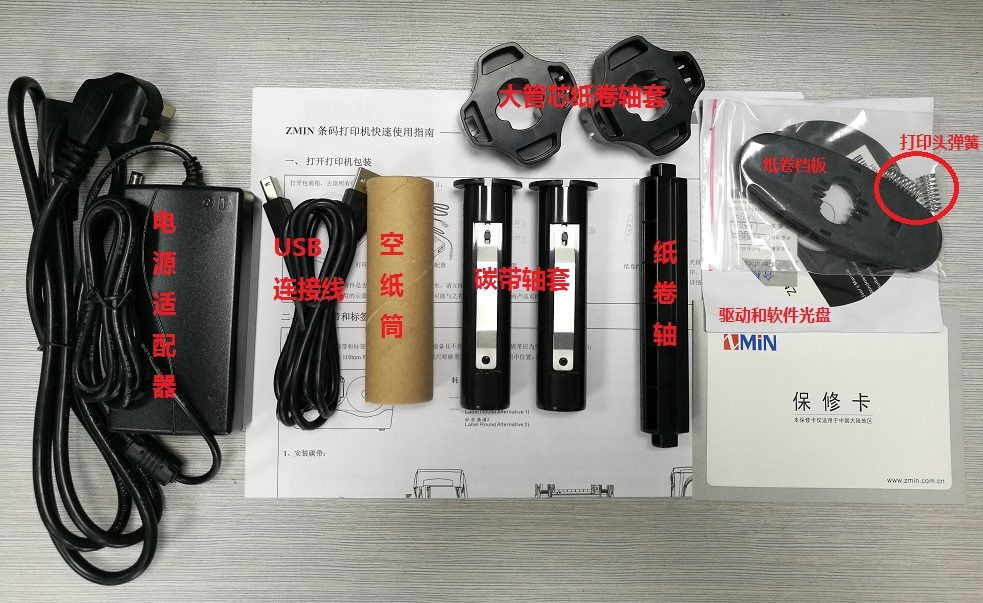
2. Accessories introduction
1. The power adapter output is 24V, 2.0~2.5A;
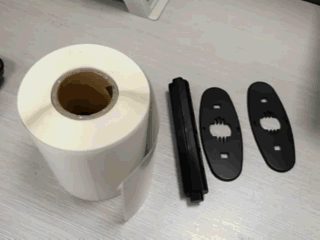
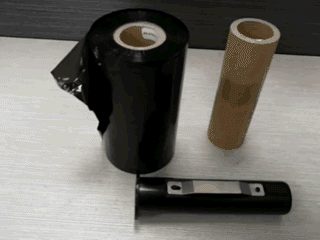
2. The empty paper core is used for ribbon take-up;
3. The large-core paper roll adapter is for large paper rolls over 60mm in diameter;
4. Please keep the printhead spring properly; it may be needed when printing special labels (such as thick paper, clothing hangtags, washable fabric or narrow labels).
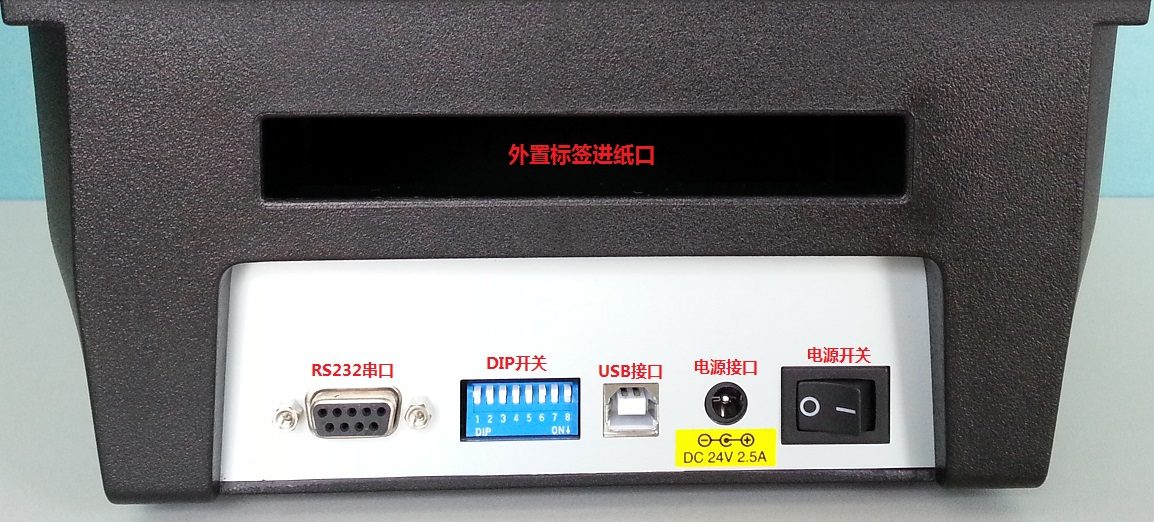
3. Ports
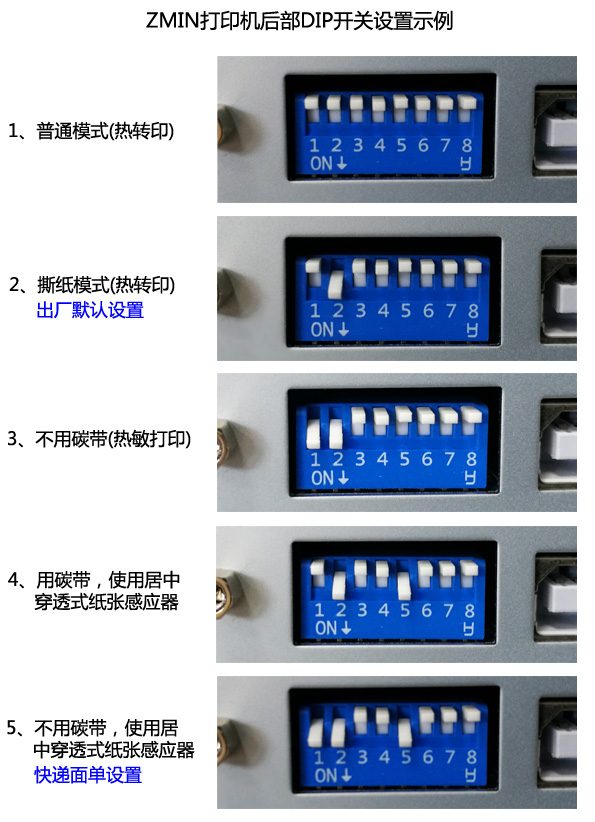
DIP switch settings:
Number Function
1: Set to down to disable the ribbon sensor; it should be set down when printing thermal labels;
2: Set to down to enable tear-off mode; generally recommended to set down;
3: Set to down to enable cutter mode; do not set down;
4: Set to down to enable the peeler; do not set down;
5: Set to down to use the transmissive sensor, set up to use the reflective sensor; labels with printing on the back generally require down;
6,7,8: Serial port baud rate settings; do not change. If you need to use the serial port, please contact the manufacturer.
4. Install labels and ribbon
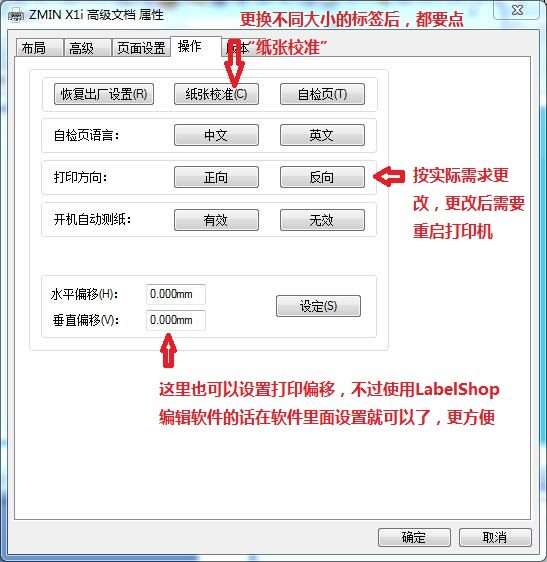
Note: After changing to labels of different specifications, a paper calibration must be performed, otherwise label skipping may occur (printing one line and skipping one or several blank labels).
1. Install thermal labels (express electronic waybills)
2. Install thermal transfer labels (coated paper)
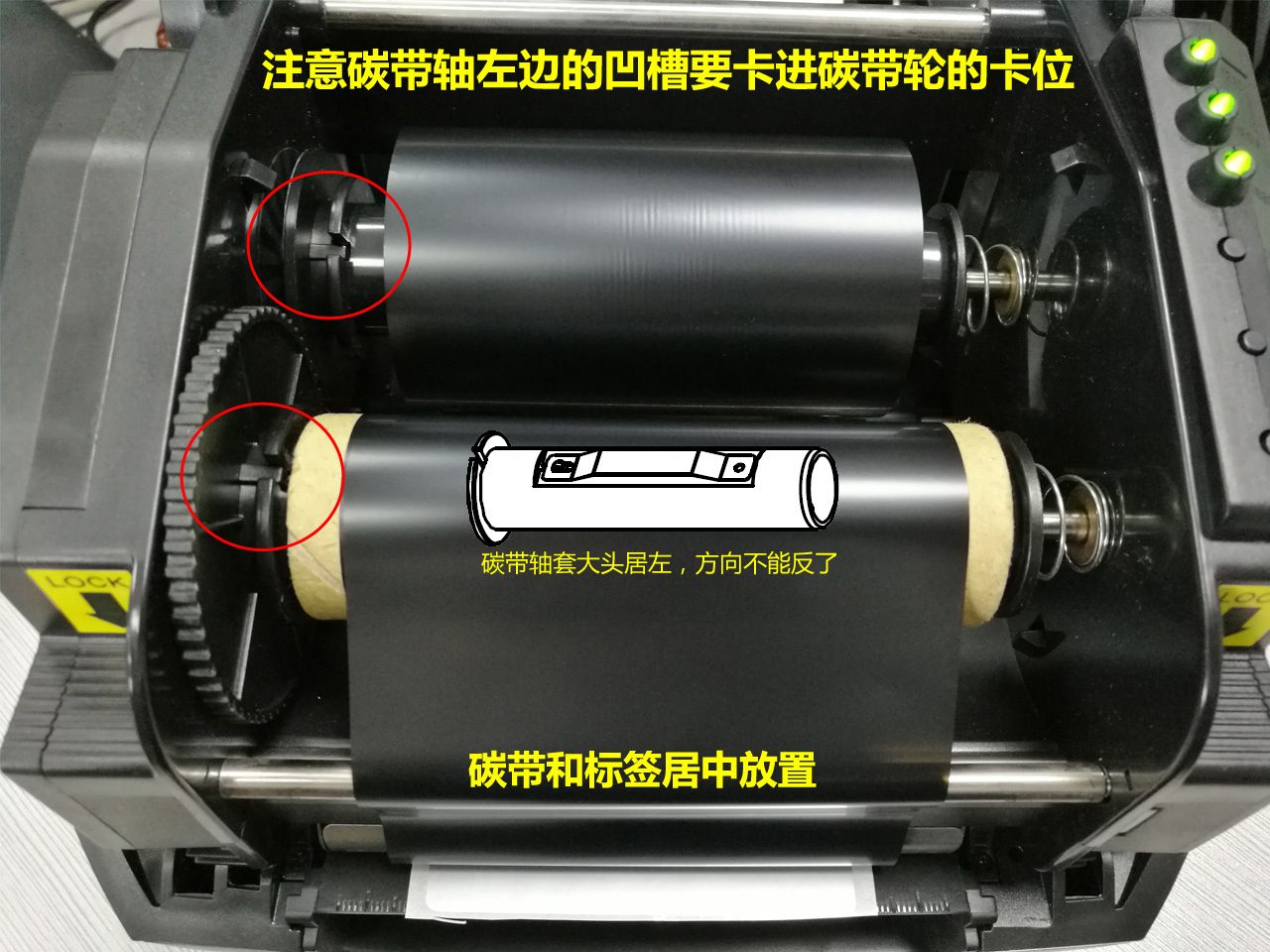
3. Install the ribbon
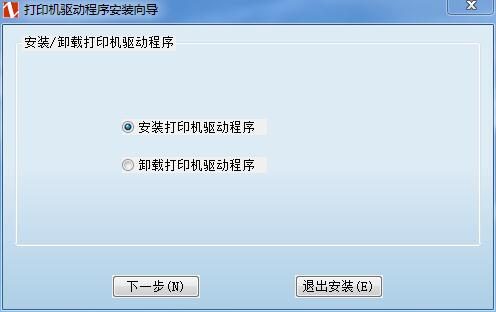
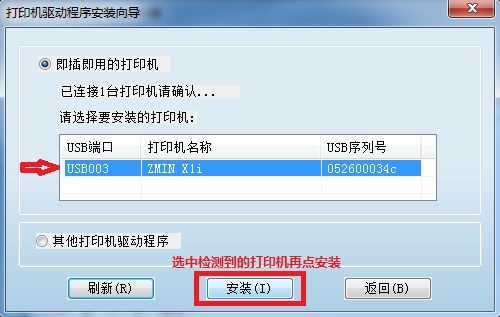
5. Install the driver
The driver is on the CD. If you cannot find the CD, download it from the company website (search Baidu for "zmin"; it is the first item in the list).
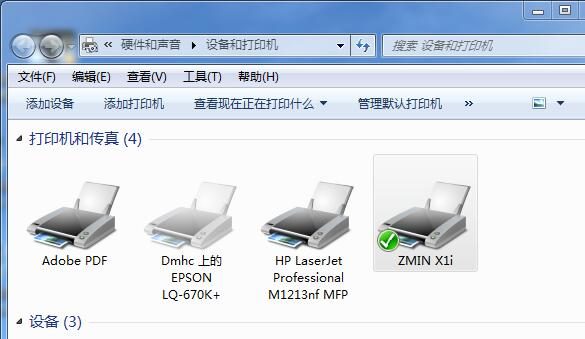
After the driver is installed, just like an ordinary printer, the printer can be seen in "Control Panel" -> "Devices and Printers". Right-click it and enter "Printing Preferences" to configure the printer.
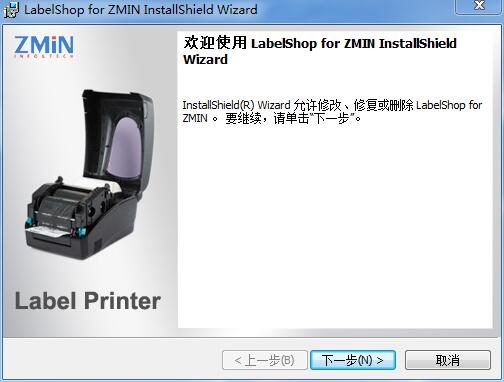
6. Install the label editing software
The label editing software LabelShop is on the CD. If you cannot find the CD, download it from the company website (search Baidu for "zmin"; it is the first item in the list).
After installation, a "Labelshop" icon will be created on the desktop; double-click it to open it for label layout and printing.
7. Using the label editing software
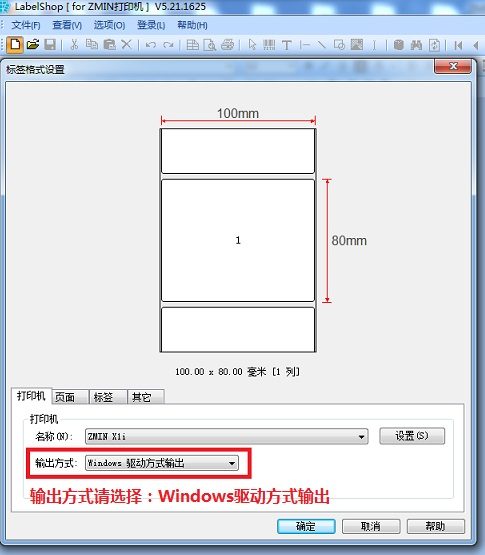
1. After opening LabelShop, click the menu "File" -> "New" to set the format of the new label:
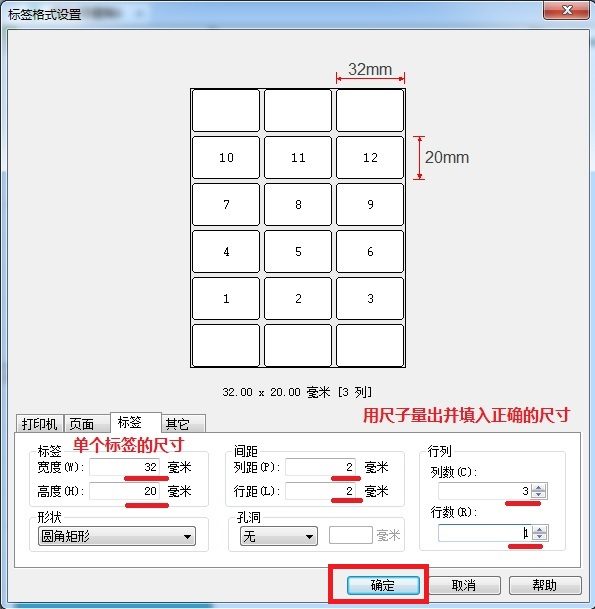
2. Set the label size and arrangement:
Click OK after setting.
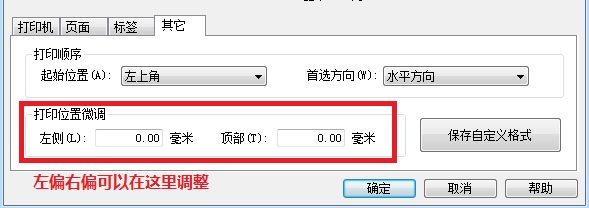
If the printed label content is slightly offset, adjust it under Other:
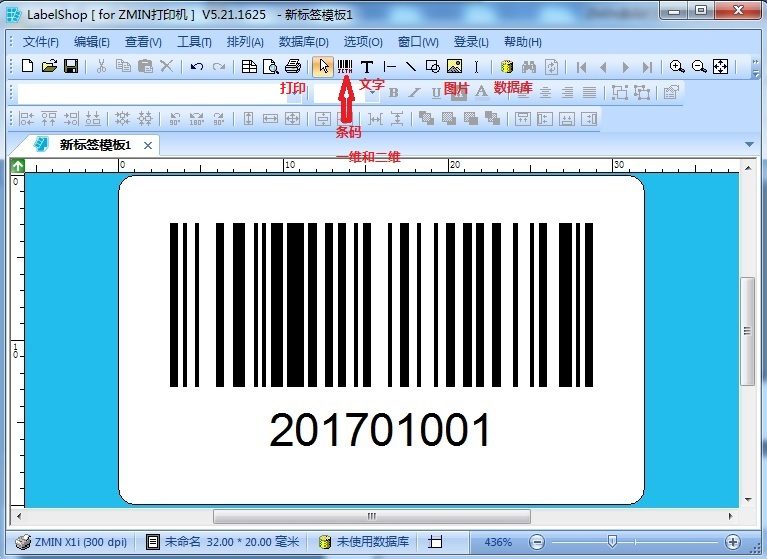
3. Add text, barcodes or images
Double-click text or barcodes to open the properties window, where you can edit the content and barcode symbology, etc.
For detailed video demonstrations, please visit the first item in the "Software Download" list on the company website.
8. Print settings
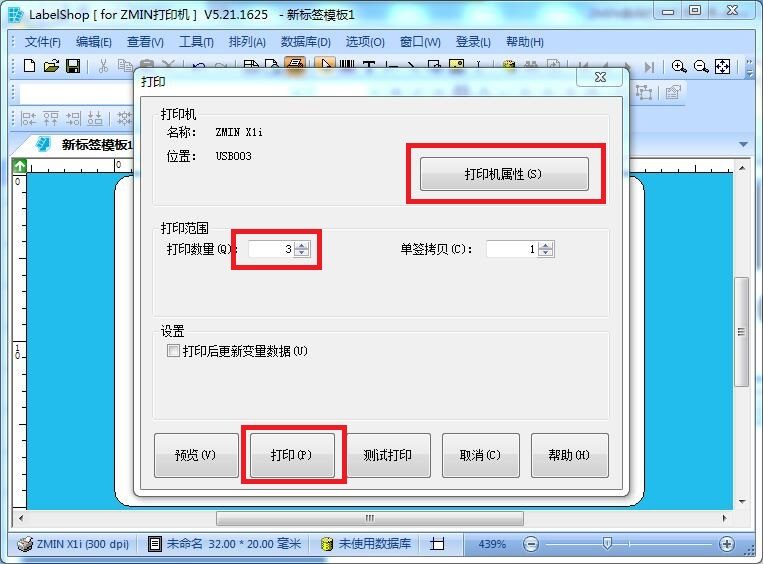
After arranging the content, click the "Print" icon, enter the print quantity in the print interface and click the "Print" button. If you need to set print speed, darkness, etc., click the "Printer Properties" button.
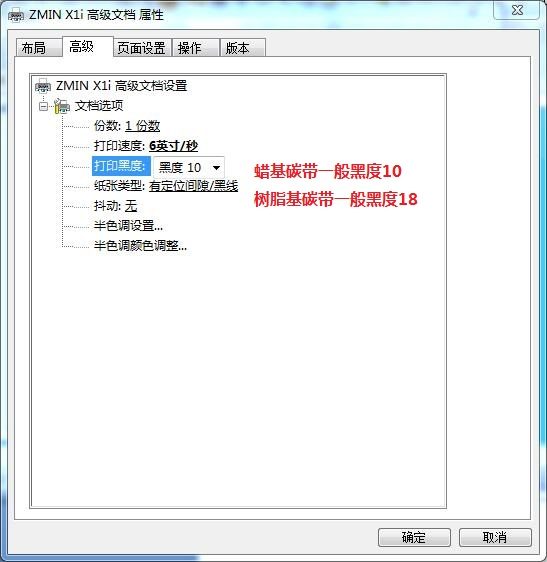
Printer property settings:
9. Maintenance
The thermal printhead is a high-value precision component that directly contacts the ribbon or labels and is relatively easy to damage, so frequent cleaning and maintenance are required. It is recommended to clean the printhead once after every three rolls of labels or one roll of ribbon is printed.
Printhead cleaning method: Turn off the printer power, dip a cotton swab in anhydrous ethanol (industrial alcohol) of 99% or higher concentration, and wipe the printhead heating line surface in one direction. After cleaning, wait a few minutes for the alcohol to evaporate completely before turning on the power.
Cleaning the platen roller is also for protecting the printhead. The platen roller directly contacts the printhead; if impurities or dust particles accumulate on the roller, they can easily damage the printhead, so please clean the platen roller together with the printhead each time.
Platen roller cleaning method: Turn off the printer power, dip a cotton swab in anhydrous ethanol (industrial alcohol) of 99% or higher concentration, wipe the surface of the platen roller, and rotate the roller at the same time.
10. Common troubleshooting
Problem 1: No printing, i.e. when printing is clicked on the computer, the printer does not respond and the indicator lights show normal.
Analysis and troubleshooting: If the printer indicator lights show normal, it is generally not a device problem; the most likely cause is that the print data was not sent to the printer.
1. Check whether the printer selected in the editing software is correct. If multiple drivers are installed on the computer, such as ZMIN X1, ZMIN X1 (Copy 1), ZMIN X1 (Copy 2), it is easy to select the wrong printer;
2. Check whether the print cable is properly connected and whether the connection between the printer and the computer's USB port is loose;
3. If the cable connection is fine, try connecting the print cable to another USB port on the computer; the driver will generally be reinstalled. After installation, select the newly installed printer in the editing software and print again;
4. Delete all ZMIN printer drivers on the computer and reinstall them;
5. If none of the above works, test on another computer. If it still does not work, the print cable may be faulty or the printer hardware may be faulty; please contact the manufacturer's technical support.
Problem 2: After clicking Print, the machine makes a noise for a while, then stops printing and the indicator lights flash.
Analysis and troubleshooting:
1. Check whether the printhead locking buckles are locked and whether the ribbon core adapter is correctly seated in the fixing slot;
2. Check whether the ribbon is properly installed or whether the ribbon is used up;
3. Check whether the label paper is installed correctly or whether the label paper is used up;
4. If all are correct, refer to the operation manual to reset the machine to factory state, then re-detect and position the paper.
Problem 3: When printing labels, it always prints one and skips one.
Analysis and troubleshooting:
1. Perform paper calibration: press and hold the [Feed] button on the printer; after about 3~4 seconds the printer will start feeding paper and the three indicator lights will flash together. Release the [Feed] button; after feeding 3~4 labels it will stop automatically, completing paper detection. Then try printing again.
2. If label skipping still occurs after paper calibration, check whether the label height setting in the editing software is wrong. If the set label height is greater than the actual label height, printing one and skipping one may occur;
3. The paper sensor is blocked by paper scraps or dust; clean the paper sensor with a brush and try again.
4. The printer has two paper detection modes, reflective and transmissive (reflective by default); try switching to the other mode (see DIP settings for details).
Problem 4: Printing is unclear.
Analysis and troubleshooting:
1. Check whether the ribbon and label paper are properly matched; for example, ordinary coated paper generally uses wax ribbon, while PET and matte silver paper generally use resin ribbon;
2. Clean the printhead with industrial anhydrous alcohol (purity above 97%). Turn off the printer power before cleaning, and turn it on again one minute after cleaning;
3. The print darkness is too high or too low. In the label editing software's printer settings, the print darkness can be adjusted; generally about 10 for wax ribbon and 16 for resin ribbon. Increase or decrease the printing temperature as needed.
Problem 5: Printing is blank with no content.
Analysis and troubleshooting:
1. First check whether the power adapter is correct (output 24V 2.0~2.5A). With a 12V power supply, the printer can still start and feed paper, but the printhead does not work and printing will be blank with no content.
2. Check whether the printhead cable is loose.
3. Check whether the darkness in the print settings is too low. Generally, wax-based ribbon uses a darkness of 8~10, and resin-based ribbon uses a darkness of 15~18.
4. If the above steps still do not solve the problem, please contact the manufacturer's technical support.