ZMIN RFID Label Printers Fully Support Reading IDs and Printing QR Codes
Read the ID of an HF NFC label, use that ID as part of a URL and write it to the label chip, and convert the ID into a QR code printed on the label.
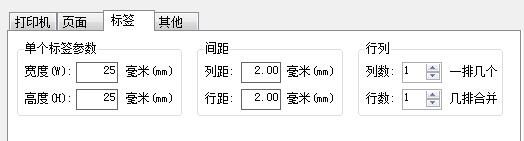
1. First set the label format; if it is a round label, its diameter is both the width and height values.
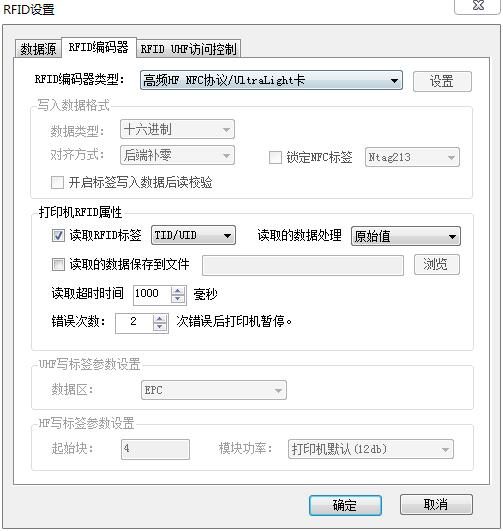
2. Insert an RFID object; the data source does not need to be set. Switch to the "RFID Encoder" tab, select the correct encoder type, and check "Read RFID Tag". If necessary, you can set whether the read ID is inverted and transcoded, and you can also choose to save the read ID as a text file.
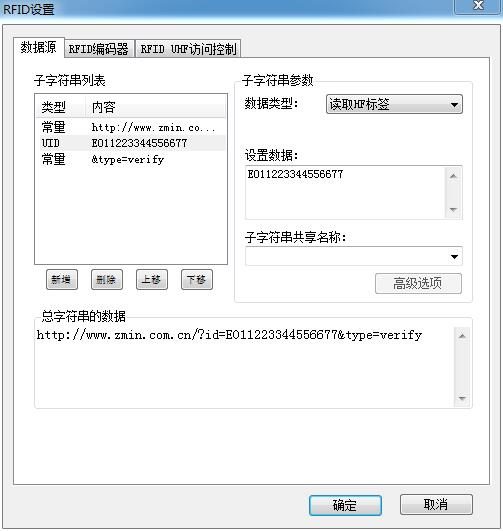
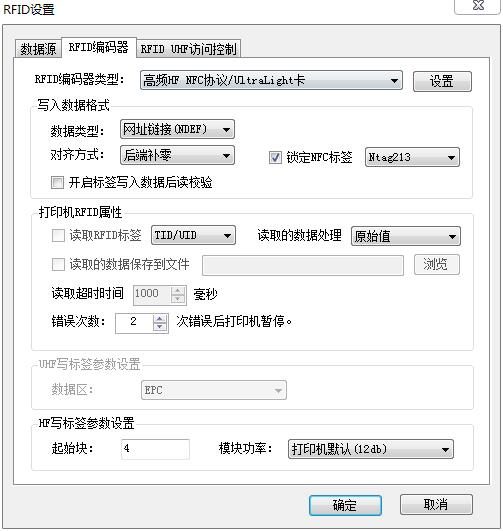
3. Insert another RFID object, which is used to write the URL; set the data source as follows (using a substring list makes it easy to embed the read ID into the URL): In the RFID encoder settings, select "URL link (NDEF)" as the write data type, and the URL will be written in NDEF format. You can choose whether to lock the written label; once locked, the label cannot be rewritten later. If necessary, you can also check "Read verification after writing data to tag", so that after writing data the label is read once more to verify that the write was correct. Note that enabling verification will increase label processing time.
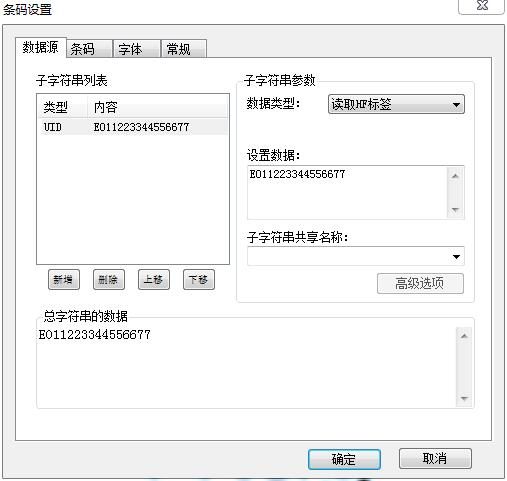
4. Insert QR code and text objects; select "Read HF tag" as the QR code data source, i.e., generate a QR code from the read ID.
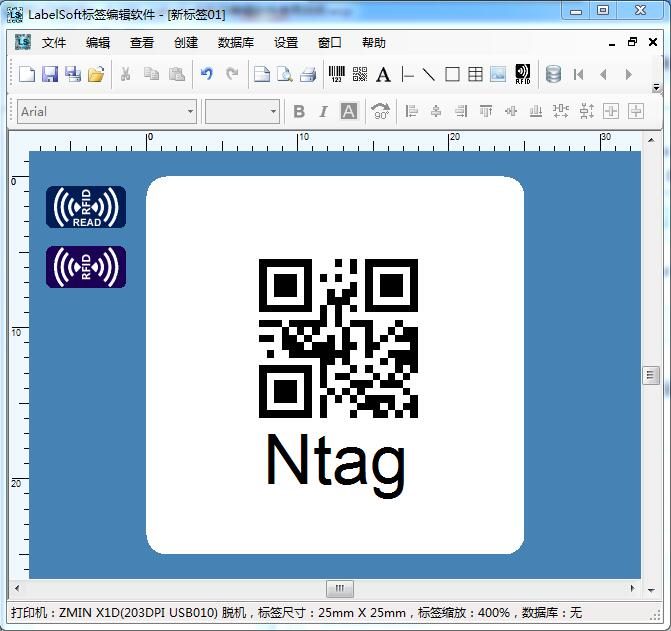
5. The label layout after setup is complete