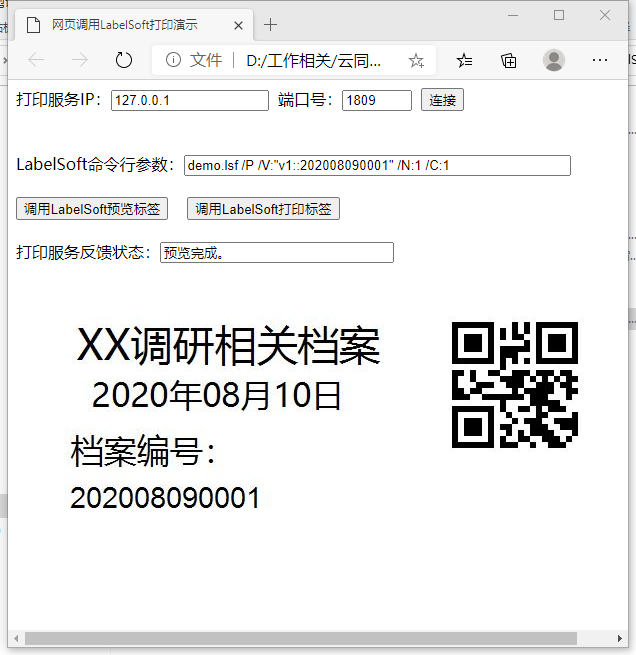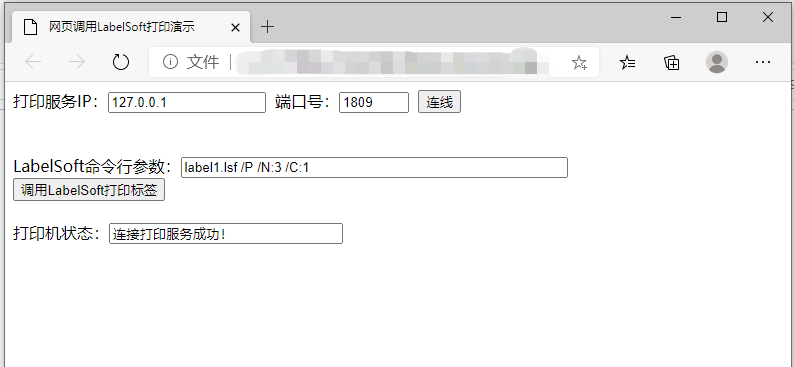
ZMIN web-page invocation of LabelSoft label editing software to print and preview labels: a perfect solution for controlling a printer to print labels in a B/S architecture.
In barcode printer system applications, the B/S model, i.e., the Browser/Server structure, is a commonly used approach.
The usual method is to use ActiveX controls, i.e., ocx controls, which allow the IE browser to call print control functions like dlls, controlling
the printer output and obtain the data returned by the printer.
However, using ocx has an obvious drawback: it supports only IE, not Firefox, Chrome or even Edge, and on Android
or Apple devices it cannot be used either.
It can perfectly replace ocx; even if you have already developed a system with ocx, only a small amount of code needs to be modified to switch over.
We decided to go a step further and call the LabelSoft label editing software directly from the web page via HTML5 WebSocket to print
labels. Label templates can be prepared in advance with LabelSoft and later invoked by command line to pass values and print, greatly solving the problem of
difficult layout on web pages and maximizing the simplification of web-based label printing.
Download and try it now: /downloads/labelsoft-win/
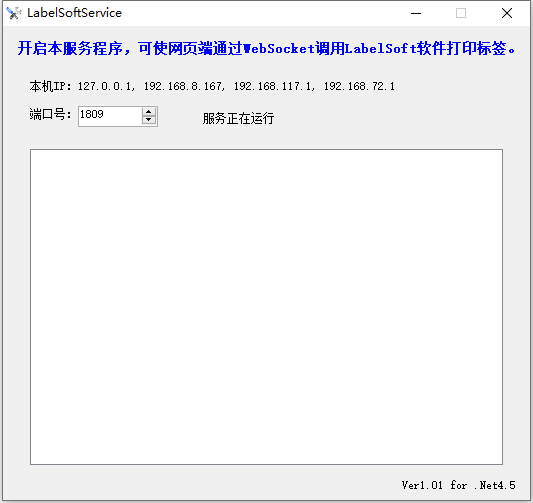
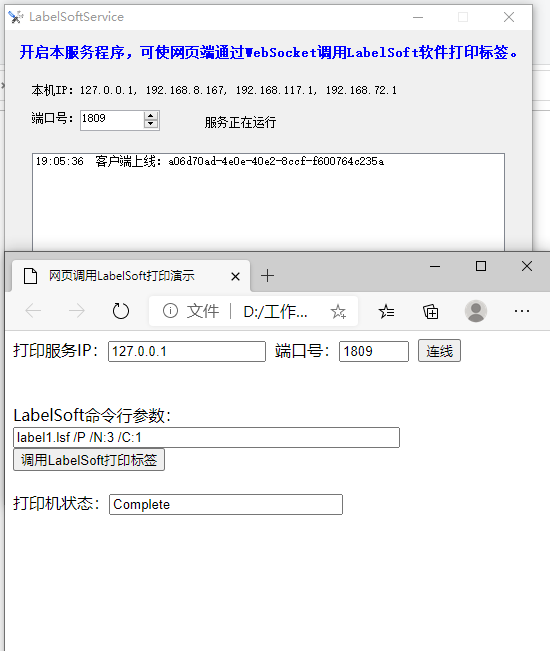
System requirements: 1. Running LabelSoftService requires the .Net 4.5 runtime environment; 2. The web browser must support HTML5; 3. WinXP does not support .Net 4.5, so LabelSoftService supports only Win7 and later operating systems. Usage: 1. Printing on the web page works normally only after the LabelSoftService program is running (it is recommended to set LabelSoftService to run automatically at startup); 2. Minimizing LabelSoftService sends it to the system tray in the lower right corner; to exit, right-click and select "Exit"; 3. Place LabelSoft.exe and LabelSoftService.exe in the same directory, and LabelSoftService will automatically call LabelSoft; 4. Other computers, mobile phones, iPads, etc. on the same LAN can use a browser to remotely access the computer connected to the printer for network printing. Special note: On Win10 systems, using IE or Edge may fail to connect to the print backend due to security settings; make the following settings: 1. Open Control Panel -> Internet Options; 2. In the "Internet Properties" window that appears, select the "Security" tab; 3. In the box under "Select a zone to view or change security settings", select "Local intranet"; 4. Click the "Sites" button to the right of "Local intranet"; 5. In the "Local intranet" window that appears, uncheck all check boxes and click "OK"; 6. Close the "Internet Properties" window, and the print backend can then be connected normally.