(Using Windows 7 with a ZMIN X1i as an example; other systems and models are similar.)
First connect the USB cable and power cable of the ZMIN barcode printer (note that the printer power button should be in the off state before connecting the cables), then turn on the printer power switch.
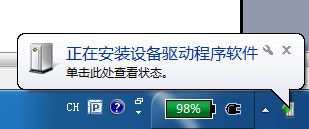
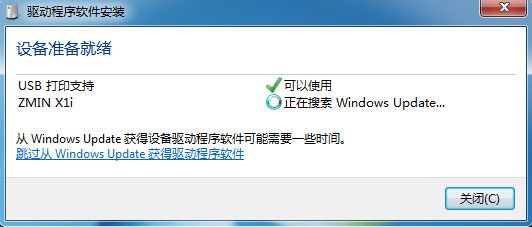
Windows will automatically detect the new device and the interface for searching and installing the driver will appear:
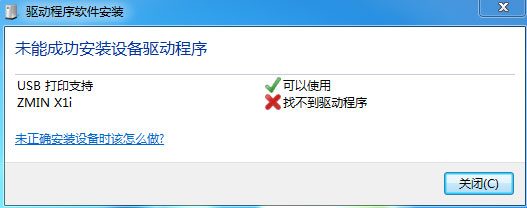
If no driver is found, it needs to be installed manually.
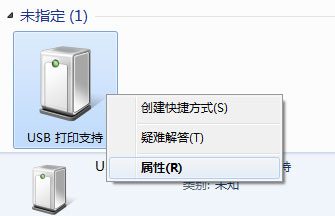
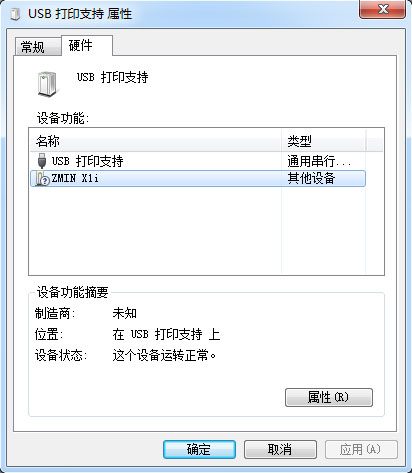
Click Start in the lower left corner -> Devices and Printers, find the unspecified "USB Printing Support" device, right-click it and enter Properties.
Then select the printer model under Hardware and click Properties.
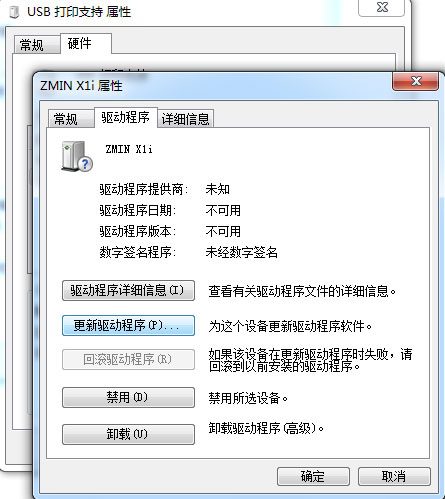
Click Driver in the printer properties, then Update Driver.
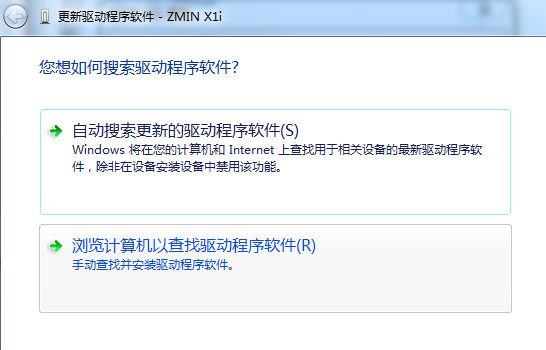
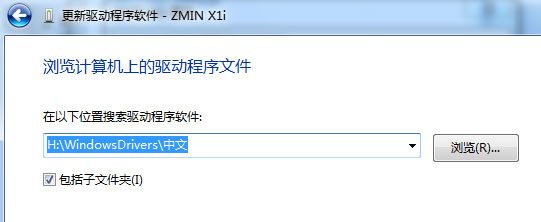
When updating, select "Browse my computer for driver software" and locate the ZMIN barcode printer driver location (before locating, put the CD supplied with the printer into the computer's optical drive).
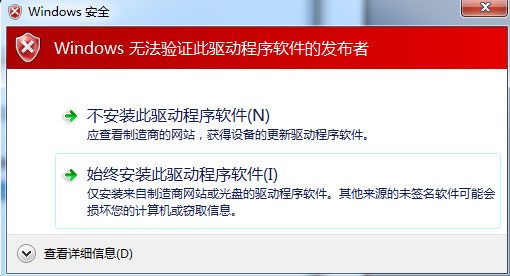
During driver installation, a Windows security warning may pop up; select "Always install this driver software".
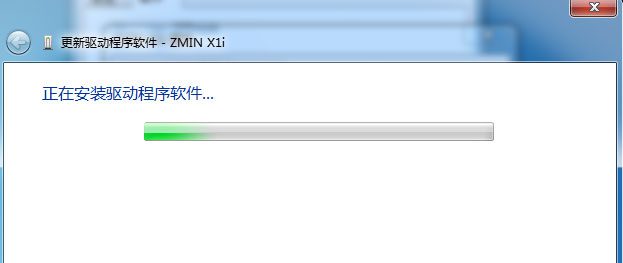
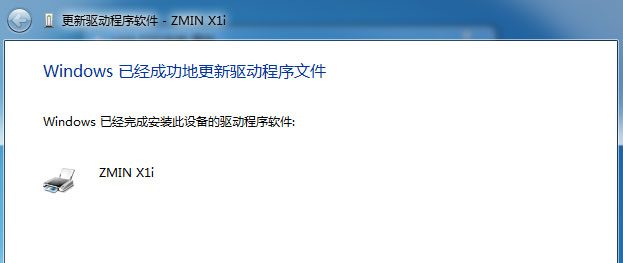
Then wait patiently for the installation to complete, and the ZMIN barcode printer can be used normally.